 martinberger.swiss
This guide shows you how to install Visual Studio Code and the Oracle SQL Developer extension offline on RHEL9. Learn how to download the correct platform-specific extension, transfer files to air-gapped systems, and troubleshoot common installation issues including NFS share configuration problems.
Download VSCode
Select the Linux .tar.gz file format.
Test Setup
Test machine for the procedure is an RHEL9 machine, built by RH Image Builder, uploaded to OCI as Custom Image. The VCN has no NAT-Gateway attached. For remote connect, Tiger-VCN is running.
Download Plugin for Linux x86
Example, information prepared in WSL2. Important to get proper version for OS_ARCH=“x86_64”. If you download for ARM, the extension can be installed, but you will get an activation error when starting SQL Developer.
You get the correct timestamp for the extension, in this case: 1770822827629
$ curl -s -X POST "https://marketplace.visualstudio.com/_apis/public/gallery/extensionquery?api-version=7.2-preview.1" \
  -H "Content-Type: application/json" \
  -d '{
    "filters": [{"criteria": [{"filterType": 7, "value": "Oracle.sql-developer"}]}],
    "flags": 514
  }' | python3 -c "
import sys, json
data = json.load(sys.stdin)
versions = data['results'][0]['extensions'][0]['versions']
for v in versions:
    if v.get('targetPlatform') == 'linux-x64':
        print(v)
        break
"
{'version': '25.4.1', 'targetPlatform': 'linux-x64', 'flags': 'validated', 'lastUpdated': '2026-02-11T15:37:15.87Z', 'files': [{'assetType': 'Microsoft.VisualStudio.Code.Manifest', 'source': 'https://Oracle.gallerycdn.vsassets.io/extensions/oracle/sql-developer/25.4.1/1770822827629/Microsoft.VisualStudio.Code.Manifest'}, {'assetType': 'Microsoft.VisualStudio.Services.Content.Changelog', 'source': 'https://Oracle.gallerycdn.vsassets.io/extensions/oracle/sql-developer/25.4.1/1770822827629/Microsoft.VisualStudio.Services.Content.Changelog'}, {'assetType': 'Microsoft.VisualStudio.Services.Content.Details', 'source': 'https://Oracle.gallerycdn.vsassets.io/extensions/oracle/sql-developer/25.4.1/1770822827629/Microsoft.VisualStudio.Services.Content.Details'}, {'assetType': 'Microsoft.VisualStudio.Services.Content.License', 'source': 'https://Oracle.gallerycdn.vsassets.io/extensions/oracle/sql-developer/25.4.1/1770822827629/Microsoft.VisualStudio.Services.Content.License'}, {'assetType': 'Microsoft.VisualStudio.Services.Icons.Default', 'source': 'https://Oracle.gallerycdn.vsassets.io/extensions/oracle/sql-developer/25.4.1/1770822827629/Microsoft.VisualStudio.Services.Icons.Default'}, {'assetType': 'Microsoft.VisualStudio.Services.Icons.Small', 'source': 'https://Oracle.gallerycdn.vsassets.io/extensions/oracle/sql-developer/25.4.1/1770822827629/Microsoft.VisualStudio.Services.Icons.Small'}, {'assetType': 'Microsoft.VisualStudio.Services.VsixManifest', 'source': 'https://Oracle.gallerycdn.vsassets.io/extensions/oracle/sql-developer/25.4.1/1770822827629/Microsoft.VisualStudio.Services.VsixManifest'}, {'assetType': 'Microsoft.VisualStudio.Services.VSIXPackage', 'source': 'https://Oracle.gallerycdn.vsassets.io/extensions/oracle/sql-developer/25.4.1/1770822827629/Microsoft.VisualStudio.Services.VSIXPackage'}, {'assetType': 'Microsoft.VisualStudio.Services.VsixSignature', 'source': 'https://Oracle.gallerycdn.vsassets.io/extensions/oracle/sql-developer/25.4.1/1770822827629/Microsoft.VisualStudio.Services.VsixSignature'}], 'assetUri': 'https://Oracle.gallerycdn.vsassets.io/extensions/oracle/sql-developer/25.4.1/1770822827629', 'fallbackAssetUri': 'https://Oracle.gallery.vsassets.io/_apis/public/gallery/publisher/Oracle/extension/sql-developer/25.4.1/assetbyname'}
Now build the URL to download the software.
$ curl -L "https://Oracle.gallerycdn.vsassets.io/extensions/oracle/sql-developer/25.4.1/1770822827629/Microsoft.VisualStudio.Services.VSIXPackage" \
  -o oracle-linux-x64-correct.vsix
Verify in WSL2, for proper OS architecture of Java.
$ unzip -p oracle-linux-x64-correct.vsix extension/dbtools/jdk/release | grep OS_ARCH
OS_ARCH="x86_64"
Transfer to RHEL
Transfer these two files to the target server. In my example they are now in the ~/Downloads folder.
oracle-linux-x64-correct.vsix
code-stable-x64-1771531559.tar.gz
Extract Code Tarball
A new directory is created.
$ cd $HOME
$ mkdir Tools
$ cp Downloads/code-stable-x64-1771531559.tar.gz Tools
$ cd Tools
$ tar -xvfz code-stable-x64-1771531559.tar.gz
Start Code
$ cd VSCode-linux-64
$ ./code
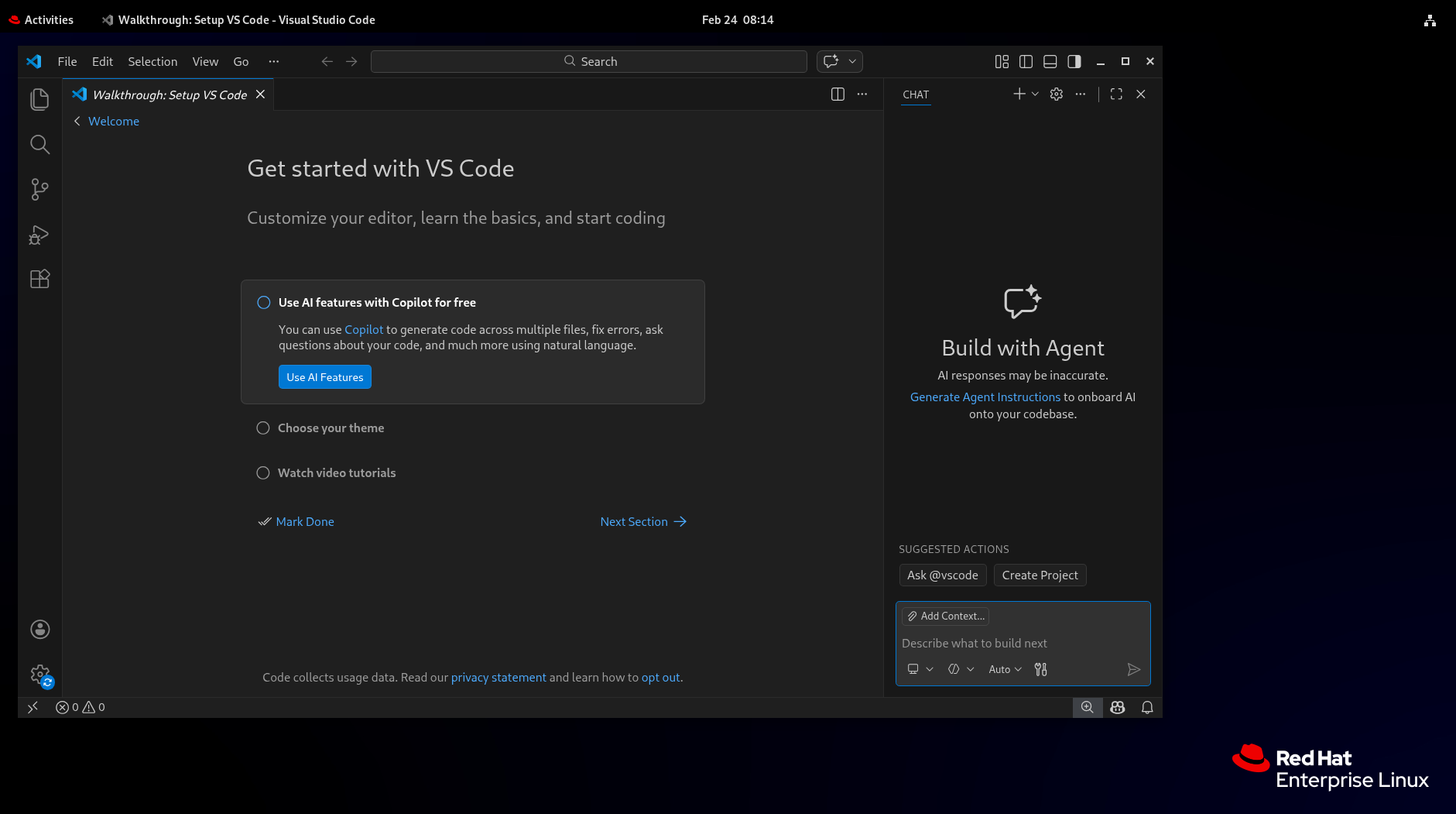
Screenshot VS Code successfully started.
Install Extension
You can do it by user interface or by terminal. The VSIX file can be selected.
./bin/code --no-sandbox \
           --disable-gpu \
           --extensions-dir ~/.vscode/extensions \
           --user-data-dir ~/.config/Code \
           --install-extension $HOME/Downloads/oracle-linux-x64-correct.vsix
Installing extensions...
Extension 'oracle-linux-x64-correct.vsix' was successfully installed.
Message in VS Code when plugin is installed and activated.

Directory containing the extension.
$ ls ~/.vscode/extensions/
extensions.json  oracle.sql-developer-25.4.1
Test with Autonomous Database Public Access
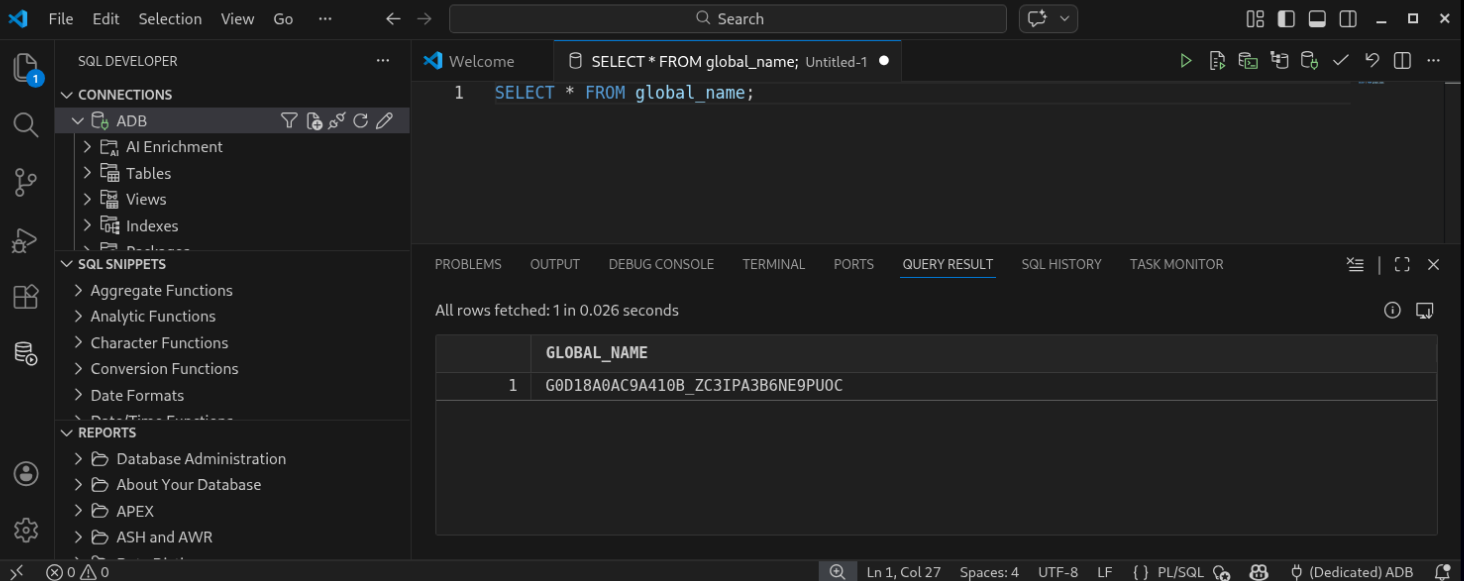
The ADB wallet is imported as connection. A short test by a SELECT on _global_names.
Troubleshooting
Problem Sizing not Saved when restarted
If your Linux $HOME is on a NFS-Share like /nfs/home/…, in my case VS Code had problems to store VS Code settings. In my case, resizing of the UI was not saved. The solution is to setup a non-NFS location for the settings. An example is below.
Create Local Folder
$ mkdir -p /tmp/vscode-$USER/user-data
$ mkdir -p /tmp/vscode-$USER/extensions
Copy existing VS Code Settings
$ cp ~/.config/Code/User/settings.json /tmp/vscode-$USER/user-data/
Create a VS Code alias which collects the proper Configuration File
$ echo "alias code='~/Tools/VSCode-linux-x64/bin/code --user-data-dir /var/tmp/vscode-$USER'" >> ~/.bashrc
$ source ~/.bashrc
Run VS Code
$ code